Platform Guide
How Does Rakb Work?
Companies have a dashboard, students have a booking page, and drivers have a trip app. Parents can follow the bus through a shared tracking link.
Company Transport Manager
Add trips and review bookings, payment records, and reports in your company dashboard.
Rakb interface screenshots with sample data
 Open full-size screenshot
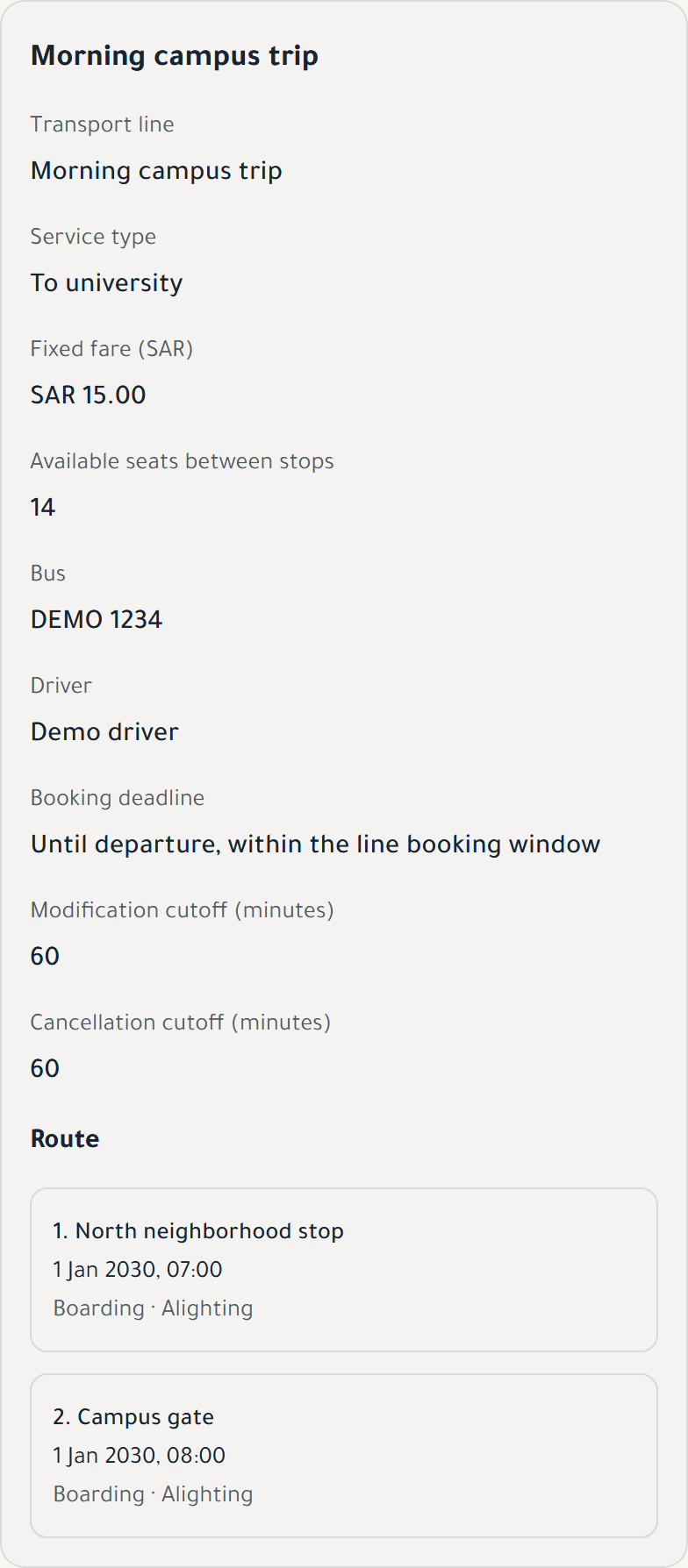
The time, bus, driver, capacity, and boarding and drop-off stops on one screen.
Register Your Company
Create your company account and start a 14-day free trial. Customize your booking page with company colors and a logo.
Create Your Trips
Create a home-pickup trip or a trip with defined boarding and drop-off points, then assign the bus, driver, departure time, and capacity.
Share the Link with Students
Share the booking link with students through WhatsApp, email, or your company's preferred channel.
Monitor & Analyze
Review bookings, seat occupancy, revenue, and driver performance in the dashboard, and export reports to Excel and PDF.
Admin Users with Permissions
Add company staff and set their permissions. Each user can access company data allowed by their role.
Cost Tracking
Record expenses by category, including fuel, salaries, and maintenance, and review profit and loss.
Payment records
Review cash payments, bank transfers, and outstanding booking amounts.
Student
Choose your trip, complete your booking details, and receive your ticket on your phone.
Rakb interface screenshots with sample data
 Open full-size screenshot
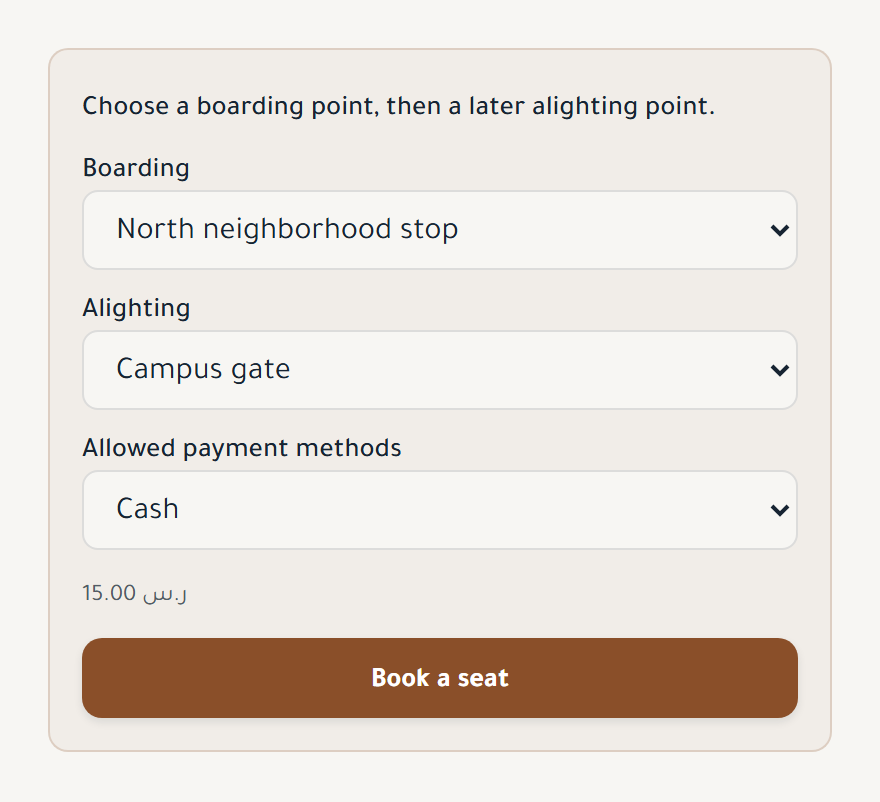
Students select boarding and drop-off stops, then review the fare and payment method.
 Open full-size screenshot
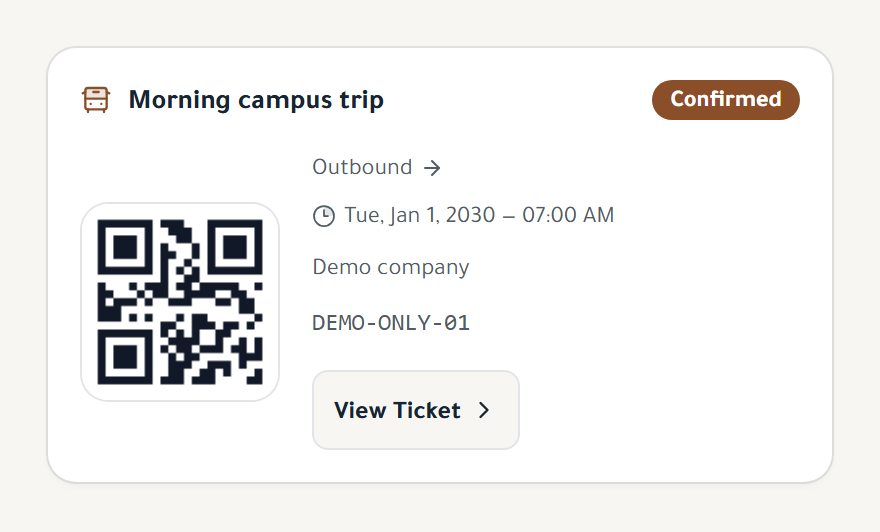
The trip name, departure time, booking status, and the ticket's QR code.
Open the Booking Link
Open the link from your transport company and view available trips and times.
Select & Confirm
Choose a trip, enter the required details, then review and confirm your booking.
Receive Your Ticket
Your digital QR ticket is available after booking. Show it to the driver when boarding.
Live Bus Tracking
View the bus location on the map, with approach and arrival alerts when enabled.
Notification Channels
Receive booking and trip updates through enabled notification channels.
Share a tracking link
If tracking sharing is available for your booking, send the link to your family so they can follow the trip.
Rate Your Trip
Rate your trip after it ends and send your feedback to the transport company.
Student account
View your bookings, tickets, and trip history in your student account.
Driver
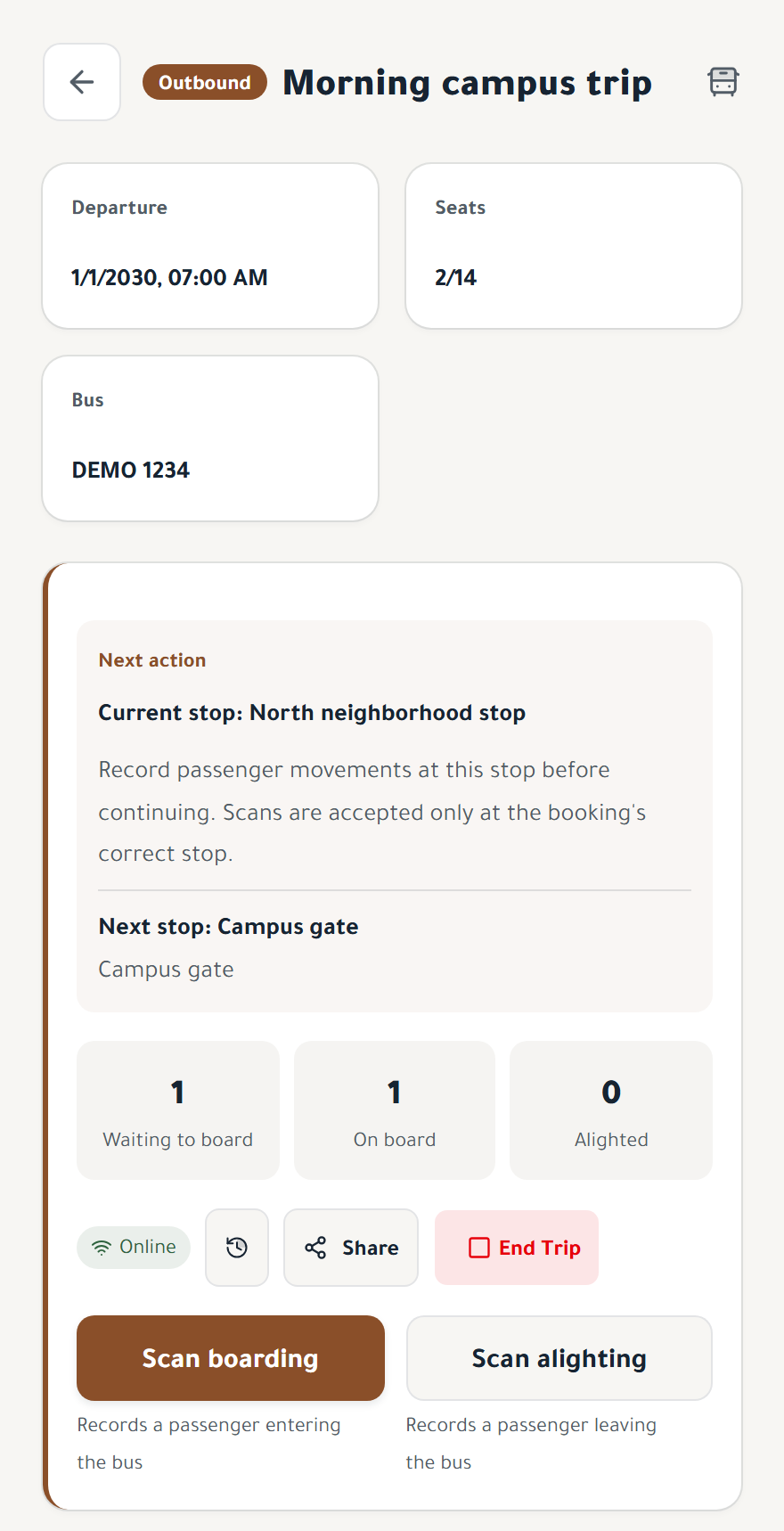
The driver app shows assigned trips and student details, with ticket scanning to confirm boarding.
Rakb interface screenshots with sample data
 Open full-size screenshot
Drivers see the current and next stops, student counts, and buttons to scan boarding and alighting.
Open Your App
Sign in with the phone number registered with your company and a verification code, then view your assigned trips.
Scan Tickets
Review the trip's student list and scan each QR ticket to record boarding.
Live GPS Tracking
When tracking is enabled, students and company staff can view the bus location according to their access permissions. Trip alerts use enabled channels.
Resilience to weak connections
Supported scans can be saved during a weak connection and synchronized when connectivity returns.
Privacy & Security
Drivers see assigned trips and their student details according to their permissions.
Parent
Follow your child's trip through a tracking link.
Open the Share Link
Open the student's shared tracking link to view the bus location and trip status when sharing is available.
Receive Trip Alerts
Follow trip status through the shared link and receive alerts when enabled.
Check the estimated arrival time
View the bus location and estimated arrival time when tracking data is available.
Choose the service that fits your trips
Examples of booking and payment options, depending on the service the transport company offers.
Home pickup or fixed stops?
For a service that starts at each student's home, the student marks a pickup location on the map. For a service with fixed stops, they choose boarding and drop-off points from those offered by the company. Booking through fixed stops requires a student account with the transport company.
A subscription for regular riders
Companies can manage a monthly student subscription for a specific service. Once it is active and payment is confirmed, the student chooses available trip days within the subscription period from their account. This transport subscription is separate from the company's Rakb plan.
Outbound and return in one booking
When the company offers a suitable return departure, students can choose and book both trips together. The company sets each departure time and can offer a round-trip discount.
Following a cash payment or bank transfer
Companies choose the available payment methods. For cash, they record collection against the booking. For bank transfers, the student adds a reference or proof when needed, then the company reviews the transfer and confirms collection. Submitting proof alone does not confirm payment.
Rakb in Practice
- Operating roles
- 4
- Start steps
- 3
- Interface languages
- 2
- Operating workspace
- 1
Try setting up a trip and booking a seat
A 14-day free trial, with no credit card required.